The StopJetLag
™
Advantage
How Does StopJetLag Work?
What Others Are Saying
About StopJetLag
About Us
START HERE
Ordering Info
The Science
StopJetLag Mobile
FAQs
Media
Blog
Contact
Follow Us
Site Map
Privacy Policy
StopJetLag on Your Next Trip
StopJetLag
StopJetLag Mobile
StopJetLag on Windows
Get your StopJetLag Flight-Aligned™ Plan
StopJetLag on Windows
®
11
StopJetLag Quick Start Video Highlights
Retrieving your StopJetLag Plan
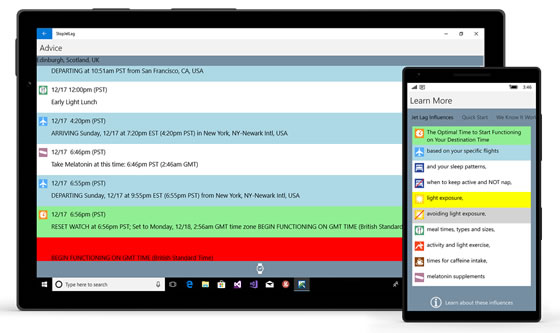
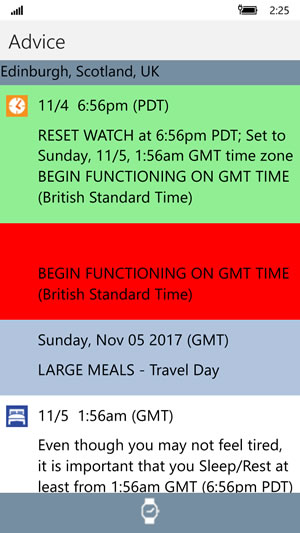
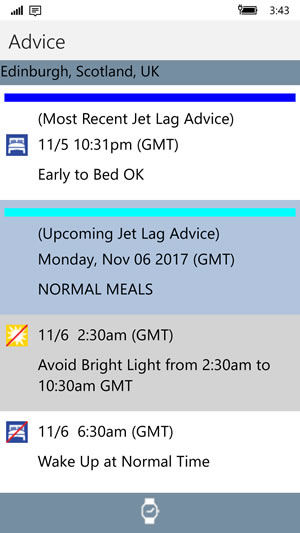
Following your StopJetLag Plan Agenda
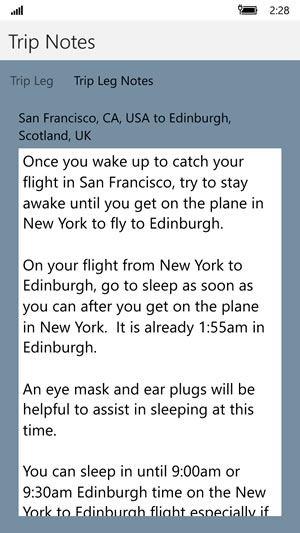
Reading your StopJetLag Trip Notes
Using your StopJetLag Plan Notifications
StopJetLag
on Windows 11 Quick Start Video
Follow your
StopJetLag
Plan with Live Tiles on your Windows 11 device.
Visit the
Windows Store
to download
the free
StopJetLag
app.
Get the StopJetLag Flight-Aligned™ Advantage
Your custom trip analysis by a jet lag travel specialist
Get your custom StopJetLag Flight-Aligned™ Plan
Learn How We Help You
Consistently Beat Jet Lag
with the
"The Art and Science of Jet Lag" series
Yes, I'd like to receive the series